
Many people love using Shark robot vacuums to keep their homes clean. These smart devices save time and handle dust, dirt, and pet hair with little effort. But sometimes, life changes: you get a new WiFi router, change your network name, or move to a new place. Suddenly, your Shark robot cannot connect to the internet. It stops working with your app, and you cannot control it from your phone or voice assistant. This is a common problem, but you can fix it. Learning how to change WiFi for Shark robot is simple if you know the steps.
This guide will walk you through the process in detail. Whether you are a beginner or just need a refresher, you will find clear instructions, expert tips, and answers to common questions. You do not need to be a tech expert to follow along.
By the end of this article, you will be able to connect your Shark robot to any WiFi network, avoid common mistakes, and keep your cleaning routine running smoothly.
Why Your Shark Robot Needs Wifi
A Shark robot vacuum is more than just a cleaning device. It’s a smart home tool. With WiFi, your Shark robot can:
- Receive cleaning schedules from your phone
- Work with voice assistants like Alexa or Google Home
- Get software updates
- Let you start or stop cleaning from anywhere
Without WiFi, your robot will still clean, but you lose many useful features. You cannot set schedules, get notifications, or control it remotely. That is why connecting it to the right WiFi network is important.
Reasons You May Need To Change The Wifi
There are several situations where you will need to change your Shark robot’s WiFi connection:
- New Router or Network: If you get a new internet provider or a new router, the network name (SSID) or password will change.
- Change in WiFi Password: Sometimes you just update your WiFi password for security.
- Moving to a New Home: Your old network does not exist in your new place.
- Upgrading to Mesh WiFi: If you install a mesh system, the network may change.
- Troubleshooting Connection Issues: If your robot keeps disconnecting, a fresh connection can help.
In all these cases, you must connect your Shark robot to the new WiFi network.
Understanding Shark Robot Wifi Requirements
Not every WiFi network will work with your Shark robot. Before you start, check these key requirements:
- 2.4 GHz WiFi Only: Most Shark robots only connect to 2.4 GHz networks, not 5 GHz.
- WPA2 Encryption: Your network should use WPA2 security (most routers default to this).
- Simple Network Names (SSID): Avoid special characters or spaces in your network name.
- Stable Internet Connection: The robot needs a steady signal to connect and stay online.
- Router Distance: Place your robot within range of your router for setup.
If your network does not meet these requirements, your robot may fail to connect.
Step-by-step Guide: How To Change Wifi For Shark Robot
You do not need technical skills to switch your Shark robot’s WiFi. Follow these steps for a smooth experience.
1. Prepare For Wifi Change
Before you start, gather the following:
- Your smartphone or tablet (with the SharkClean app installed)
- Your new WiFi network name (SSID) and password
- Your Shark robot (charged and powered on)
- Access to your WiFi router (if needed to check settings)
Tip: If you have a dual-band router (2.4 GHz and 5 GHz), make sure your phone is connected to the 2.4 GHz band during setup.
2. Remove The Shark Robot From The App
The SharkClean app cannot store WiFi settings for more than one network per robot. To add a new network, you must remove the robot from the app first.
- Open the SharkClean app on your phone.
- Tap on your robot vacuum’s icon.
- Go to the robot’s settings (usually a gear or three dots).
- Tap Remove Device or Delete Robot.
This erases the old WiFi information and prepares the robot for a new setup.
3. Reset The Shark Robot’s Wifi
Now, you must reset the WiFi on the robot itself. This puts it into pairing mode.
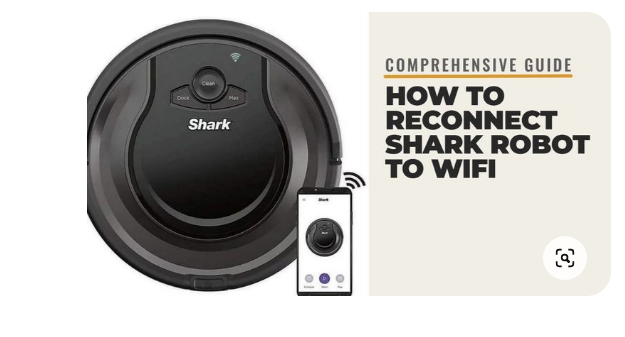
- Locate the WiFi (or Dock and Clean) buttons on your robot. The exact buttons depend on your model.
- Press and hold the Dock and Clean buttons together for about 10 seconds.
- You should hear a beep, and the WiFi light will start blinking.
This means your robot is now ready to connect to a new WiFi network.
4. Add The Robot Back To The Sharkclean App
- Open the SharkClean app again.
- Tap Add a Device or the “+” icon.
- Select your robot model from the list.
- Follow the on-screen instructions.
The app will ask for your new WiFi details. Enter the SSID (network name) and password carefully.
Tip: Double-check for typos. Even one wrong letter will cause the connection to fail.
5. Connect Your Robot To The New Wifi
- The app will send the WiFi info to your robot.
- Make sure your phone stays close to the robot during this step.
- Wait for the robot’s WiFi light to stop blinking and become solid.
If the light turns solid, your robot is now connected to the new WiFi. If it keeps blinking or you get an error in the app, review your steps and try again.
6. Test The Connection
Once connected, try the following to make sure everything works:
- Start a cleaning job from the app.
- Set a schedule.
- Check for firmware updates.
If all features work, your robot is ready to use with the new WiFi.
Common Problems And How To Solve Them
Changing WiFi is usually quick, but sometimes things go wrong. Here are some common issues and solutions.
Robot Will Not Connect To Wifi
- 2.4 GHz Required: Make sure your network is 2.4 GHz. Many routers combine 2.4 GHz and 5 GHz into one name. Check your router’s settings to separate them if needed.
- Wrong Password: Double-check your password. Passwords are case-sensitive.
- Too Far from Router: Move the robot and your phone closer to the router.
- Special Characters in SSID: Remove any unusual symbols from your WiFi name.
App Cannot Find The Robot
- Robot Not in Pairing Mode: Repeat the reset (hold Dock and Clean) until the WiFi light blinks.
- Bluetooth Off: Some setups use Bluetooth. Make sure it is on.
- App Not Updated: Update the SharkClean app to the latest version.
Robot Keeps Disconnecting
- Weak Signal: Place your router higher and closer to the robot’s home base.
- Router Overload: Too many devices can slow your network. Disconnect unused devices.
- Firmware Outdated: Update your robot’s software through the app.
The Wifi Light Does Not Blink
- Wrong Buttons: Check your robot’s manual for the correct reset buttons. Some models use Dock and Max, or Dock and Clean.
- Robot Not Powered On: Make sure the robot is charged and turned on.
Shark Robot Models And Wifi Compatibility
Different Shark robot models have different WiFi features. Some older models may not support all the latest functions. Here’s a quick comparison of popular Shark robots and their WiFi details.
| Model | WiFi Band | App Control | Voice Assistant Support |
|---|---|---|---|
| Shark IQ Robot (RV1001AE) | 2.4 GHz only | Yes | Alexa, Google |
| Shark AI Robot (RV2001) | 2.4 GHz only | Yes | Alexa, Google |
| Shark ION Robot (RV750) | 2.4 GHz only | Yes | No |
| Shark EZ Robot (RV912S) | 2.4 GHz only | Yes | Alexa, Google |
As you can see, almost all Shark robots use 2. 4 GHz WiFi. If your router only uses 5 GHz, you may need to enable the 2. 4 GHz band.
Credit: medium.com
Tips For A Smooth Wifi Change
Changing your Shark robot’s WiFi can be easy if you plan ahead. Here are some expert tips:
- Label Your Networks: If you have both 2.4 GHz and 5 GHz, give them clear, different names.
- Charge Your Robot: Low battery can interrupt the setup process.
- Restart Your Router: If you have connection problems, restart your router to clear glitches.
- Avoid Peak Hours: Set up your robot when fewer people are online for the best signal.
- Keep Your App Updated: New app versions often fix bugs.
What To Do If You Forget Your Sharkclean App Password
If you forgot your SharkClean app password, you can reset it:
- Open the app and tap Forgot Password.
- Enter your email address.
- Follow the instructions in the email to set a new password.
You need access to the app to change WiFi, so get your password sorted before starting.

Credit: www.youtube.com
Resetting Your Shark Robot To Factory Settings
If you keep having problems, you can do a full factory reset. This erases all data and returns the robot to its original state.
- For most models: Hold the Dock and Clean buttons for 10–15 seconds until the robot beeps and the WiFi light blinks rapidly.
- Add the robot to your app again as a new device.
Warning: You will lose your cleaning history and schedules.
Advanced Troubleshooting: Router Settings
Sometimes, the problem is not with your robot, but with your network. Here are some advanced tips:
- Check MAC Address Filtering: Some routers block new devices. Add your robot’s MAC address to the allowed list.
- Disable AP Isolation: This setting can prevent devices from talking to each other.
- Limit Channel Width: Set your 2.4 GHz band to 20 MHz for better compatibility.
- Update Router Firmware: Like your robot, routers get updates too.
If you are not sure how to do these things, ask your internet provider or check your router’s manual.
Using Mesh Networks And Extenders
Modern homes often use mesh WiFi or extenders to cover large areas. Shark robots can work with these, but there are some things to keep in mind:
- Make sure your mesh system broadcasts a 2.4 GHz signal.
- Place the robot’s dock near a mesh node, not too far from the main router.
- Avoid networks with special settings like WPA3, which may not be supported.
If your robot keeps dropping the connection, try moving the dock to a different spot.
How To Check If Your Robot Is On The Right Network
It’s easy to forget which WiFi your robot is using. Here’s how to check:
- Open the SharkClean app.
- Go to your robot’s settings.
- Look for the network name (SSID) listed.
If the network does not match your current WiFi, repeat the setup steps to change it.
Table: Shark Robot Wifi Troubleshooting Quick Reference
If you run into trouble, use this quick reference for solutions.
| Problem | Possible Cause | Fix |
|---|---|---|
| Robot not connecting | 5 GHz WiFi, wrong password | Switch to 2.4 GHz, re-enter password |
| App can’t find robot | Robot not in pairing mode | Reset robot WiFi, try again |
| Frequent disconnections | Weak signal, router overload | Move dock, reboot router, disconnect other devices |
| WiFi light not blinking | Wrong button combo, low battery | Check manual, charge robot |
Keeping Your Shark Robot Secure
Any device on your home WiFi can be a target for hackers. Here’s how to keep your Shark robot secure:
- Use a strong WiFi password: Avoid simple or common words.
- Update firmware regularly: Use the app to check for updates.
- Do not use open networks: Always connect your robot to a secure, private WiFi.
- Disable guest networks: Do not connect your robot to a guest network.
Real-world Example: Changing Wifi For A Shark Iq Robot
Let’s say you just moved and got a new router. Your Shark IQ Robot (RV1001AE) won’t show up in your app. Here’s what you do:
- Open the SharkClean app and remove the old robot profile.
- On the robot, hold Dock and Clean for 10 seconds until the WiFi light blinks.
- In the app, tap Add Device and follow the steps.
- Enter your new WiFi name and password.
- Wait for the WiFi light to turn solid.
Now your robot is ready to clean your new home. Many users skip removing the old profile, which is a common mistake. Always remove and re-add the robot for a clean setup.
Non-obvious Insights Beginners Miss
- Your phone’s WiFi matters during setup: If your phone is on 5 GHz, the robot may not connect. Always use the 2.4 GHz band.
- SSID and password must match exactly: Even an extra space or wrong letter will cause the setup to fail.
- Some routers have “smart connect”: This merges 2.4 GHz and 5 GHz into one name. Temporarily turning this off can help with setup.
- Factory reset is a last resort: Only use it if nothing else works, as you will lose all saved data and schedules.
Useful Resources
For more advanced support and troubleshooting, the official Shark website has detailed guides and FAQs. You can also find help from communities and forums. For networking basics, you might check How-To Geek, which offers simple explanations about WiFi and routers.
Frequently Asked Questions
How Do I Know If My Shark Robot Supports Wifi?
Most Shark robots from the last five years support WiFi and app control. Check your model number and look for the WiFi symbol on the robot or in the manual. If you use the SharkClean app and see your model listed, it is WiFi-capable.
Can I Connect My Shark Robot To 5 Ghz Wifi?
No, almost all Shark robot models only support 2.4 GHz WiFi. If your router only uses 5 GHz, you will need to enable 2.4 GHz or set up a guest network that uses 2.4 GHz.
Do I Need To Reset My Robot Every Time I Change My Wifi Password?
Yes, if you change your WiFi password, you must reconnect your robot with the new password. This requires removing the robot from the app, resetting its WiFi, and setting it up again.
What If My App Says “robot Not Found” During Setup?
First, make sure your robot is in pairing mode (WiFi light blinking). Check that your phone is on the correct WiFi band (2. 4 GHz), Bluetooth is enabled if needed, and you are close to the robot. Try restarting your phone and the robot if the problem continues.
How Do I Keep My Shark Robot Connected To Wifi All The Time?
Place the dock close to your router or a mesh node, use a strong password, keep your router firmware up to date, and avoid connecting too many devices to your network. Check the SharkClean app for updates and follow the robot’s maintenance tips.
Changing the WiFi for your Shark robot may seem tricky at first, but with the right steps, it’s a quick process. Following these instructions will keep your cleaning routine on track and your smart home running smoothly. If you ever get stuck, remember that support is just a click away, and you are never alone in getting your robot back online.
Credit: kismac-ng.org

Brandy A. Cherney lovingly refers to herself as a cleaning geek, born and bred in South Carolina but moved to New York City to earn her B.A. in English. She is currently a wife, and mother of two children, two cats, and a dog. Brandy has always loved writing, but never thought she would write for a living.