
Keeping your home clean is easier than ever thanks to smart devices like the Shark Robot Vacuum. But even the smartest robot needs regular charging to stay active. If you’re new to robot vacuums or just bought a Shark model, you might wonder: How do you charge it correctly? What mistakes should you avoid? And what can you do if charging does not work as expected? This guide covers everything you need to know, from first-time setup to pro-level tips for keeping your Shark Robot Vacuum running at its best.
Understanding Your Shark Robot Vacuum’s Charging System
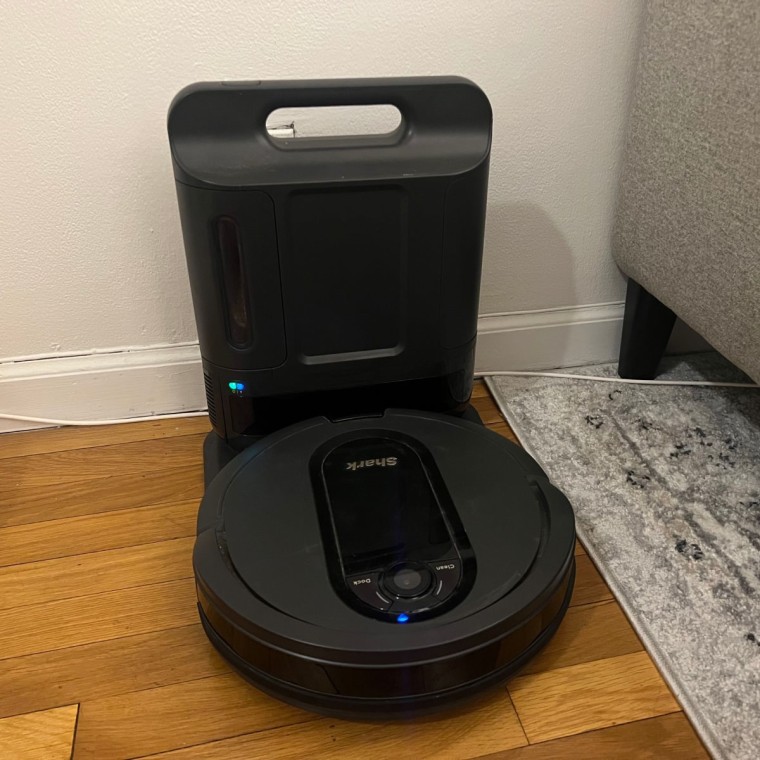
Before you start charging, it’s important to understand how the Shark Robot Vacuum is designed to get power. Most Shark models use a charging dock (sometimes called a base or station). The robot finds this dock and connects its charging contacts to the dock’s contacts. Some models have a charging light that shows the battery status. Others can even be controlled and monitored through a mobile app.
Key parts involved in charging:
- Charging Dock/Base: The station where the robot returns for charging.
- Power Adapter: Supplies power to the charging dock. Some docks connect directly to the wall, while others use a separate adapter.
- Charging Contacts: Metal plates on both the robot and dock that touch to transfer electricity.
- Status Lights/Indicators: LED lights that show charging status.
Understanding these parts helps you set up everything correctly and spot problems faster.
First-time Charging: Step-by-step Setup
Charging your Shark Robot Vacuum for the first time is simple, but missing a step can lead to problems. Follow these steps for a smooth start:
- Unbox and Inspect: Take out the robot, charging dock, and power cable. Look for damage or missing parts.
- Choose the Dock Location: Place the dock against a wall on a flat floor. Make sure there’s at least 3 feet (1 meter) of open space in front and 1 foot (30 cm) on both sides. Avoid carpets with long fibers under the dock.
- Plug in the Dock: Connect the dock’s power cable to an outlet. Some Shark docks have a small light that turns on to show they’re ready.
- Power On the Robot: Find the Power switch, usually on the side or bottom. Turn it on.
- Manually Place the Robot on the Dock: The first time, put the robot directly onto the dock. Line up the metal contacts carefully. You should see a light or hear a beep indicating charging has started.
- Wait for a Full Charge: For the first use, let the robot charge until it’s fully powered. This usually takes 3-6 hours, depending on your model.
Pro tip: If your robot is not charging the first time, double-check the power outlet and make sure the dock’s contacts are clean and touching the robot’s contacts.
Credit: www.nbcnews.com
Charging In Daily Use: Automatic And Manual Methods
After the first charge, your Shark Robot Vacuum can usually find its dock and charge itself. Here’s how charging works during regular use:
Automatic Docking
Most models return to the dock when their battery runs low. The robot uses infrared sensors or sometimes a camera to find the dock. When it connects, charging begins automatically.
What to expect:
- The robot may take a few minutes to find the dock.
- Lights on the robot or dock should turn on, showing charging has started.
- Some models send a notification to your phone if you use the SharkClean app.
Manual Charging
If the robot cannot find the dock, or if you move it to another room, you can always pick it up and place it on the dock yourself. Make sure the contacts line up.
When to use manual charging:
- After cleaning far from the dock.
- If the robot’s navigation is blocked.
- If you store the robot away from the dock for a while.
Charging Without The Dock
Some older or basic models let you plug a power adapter directly into the robot. Check your user manual to see if this is possible for your Shark model.
How To Know If Your Shark Robot Vacuum Is Charging
It’s important to understand the charging indicators, so you know when your robot is ready to clean again.
Common charging signals:
- Solid or blinking light on the robot: Shows charging in progress.
- Green/white light: Usually means charging, but check your manual.
- Light turns off: Charging is complete, or robot is in standby.
Here’s a quick comparison of charging indicators on popular Shark models:
| Shark Model | Charging Light Behavior | Full Charge Time |
|---|---|---|
| Shark IQ Robot | Blinking blue light while charging, solid blue when full | 5-6 hours |
| Shark ION Robot | Blinking white light during charging, solid white when full | 3-4 hours |
| Shark AI Robot | Pulsing white light charging, solid when done | 4-6 hours |
Tip: Charging time and light patterns vary by model. Always check your specific user manual.
Optimizing Charging Dock Placement
Where you place the charging dock makes a big difference. A good location helps the robot find its way home and charge smoothly.
Best practices for dock placement:
- Flat, Hard Floor: The dock should sit level on tile, wood, or low-pile carpet.
- Open Area: Keep at least 3 feet (1 meter) clear in front and 1 foot (30 cm) on each side. Avoid putting the dock under furniture.
- Near a Wall: The back of the dock should touch a wall for stability.
- Away from Obstacles: Avoid placing near stairs, thick rugs, or items that could block the sensors.
- Close to a Power Outlet: Use the original power adapter and avoid using extension cords.
Non-obvious insight: Many people place the dock where it looks tidy, like behind a sofa or in a corner, but this often makes it hard for the robot to find the dock or line up the contacts. Open space is more important than hiding the dock.
Cleaning And Maintaining Charging Contacts
One of the most common reasons a Shark Robot Vacuum won’t charge is dirty charging contacts. Dust, pet hair, and moisture can build up and block the connection.
How to clean charging contacts:
- Turn off the robot and unplug the dock.
- Use a dry cloth or cotton swab to wipe the metal plates on both the robot and dock.
- For stubborn dirt, use a pencil eraser to gently rub the contacts.
- Never use water or liquid cleaners.
How often to clean: Every 1-2 weeks, or more often if you have pets or a dusty home.
Pro tip: Even new robots can have a thin layer of oil or dust from the factory. Clean the contacts before the first use for best results.

Credit: www.youtube.com
Troubleshooting Charging Problems
Sometimes, your Shark Robot Vacuum may not charge properly. Here’s how to diagnose and fix common issues:
1. The Robot Won’t Charge At All
- Check the Power Source: Make sure the outlet works by plugging in another device.
- Inspect the Dock: Ensure the dock’s light is on (if it has one).
- Clean the Contacts: Dirt is the most common cause.
- Check the Power Cable: It should be fully plugged in, with no visible damage.
2. The Robot Misses The Dock
- Check Dock Placement: Move it to a more open area.
- Clear Obstacles: Remove anything near the dock that could block the robot’s sensors.
- Restart the Robot: Turn it off and on again to reset navigation.
3. Charging Takes Too Long
- Room Temperature: Charging is slower if the room is very hot or cold (ideal range: 50°F–95°F or 10°C–35°C).
- Battery Age: Older batteries charge more slowly. Most Shark robot batteries last 1-2 years with normal use.
- Update Firmware: Use the SharkClean app to check for updates.
4. Robot Leaves Dock Early
- Battery Calibration: Let the robot fully discharge, then charge to 100% to recalibrate.
- Check for Power Interruptions: Make sure the dock’s power is stable.
5. Error Messages Or Beeps
- Check User Manual: Error codes often mean charging issues.
- Contact Support: If all else fails, reach out to Shark’s customer service.
Non-obvious insight: Many people forget that power surges or outages can reset the dock, causing robots to lose their way. If your area has frequent power cuts, consider a surge protector.
Battery Care And Replacement
A healthy battery is key for good performance. Here’s how to keep your Shark Robot Vacuum’s battery working well:
Tips for longer battery life:
- Regular Use: Use the robot at least once a week. Batteries stay healthier when used often.
- Avoid Full Discharge: Don’t let the battery run out completely all the time. Recharge when the robot returns to the dock.
- Room Temperature Storage: Don’t store the robot in very hot or cold places.
- Replace When Needed: If your robot runs for much less time than before, the battery may need replacing.
How to replace the battery:
Most Shark models have a removable battery. Here’s a general process:
- Turn off the robot.
- Flip it over and find the battery cover (usually held by screws).
- Remove the screws and take out the old battery.
- Insert the new battery, making sure it fits tightly.
- Replace the cover and screws, then charge fully before use.
Note: Use only Shark-approved batteries for safety and best performance.
Comparing Shark Robot Vacuum Models And Charging Features
Different Shark Robot Vacuums have slightly different charging features. Here’s a quick comparison to help you understand what’s available.
| Model | Auto Docking | App Support | Battery Life (per charge) |
|---|---|---|---|
| Shark IQ Robot | Yes | Yes | Up to 90 mins |
| Shark ION Robot | Yes | Some models | Up to 60 mins |
| Shark AI Robot | Yes | Yes | Up to 120 mins |
Insight: Models with app support can let you check charging status from your phone, set cleaning schedules, and get notifications if charging fails.
Using The Sharkclean App To Monitor Charging
Many Shark Robot Vacuums work with the SharkClean app. This app can show you real-time charging status, battery level, and send alerts if there’s a problem.
What you can do with the app:
- See if the robot is charging or fully charged.
- Schedule cleaning times to match when the robot is ready.
- Get alerts for charging errors or dock issues.
- Update firmware for better charging performance.
How to connect the app:
- Download the SharkClean app from Google Play or Apple App Store.
- Create an account and follow the steps to connect your robot (usually via Wi-Fi).
- Check the battery and charging status anytime.
Extra tip: If you have Wi-Fi problems, the robot may not update its status. Make sure your Wi-Fi signal is strong near the dock.

Credit: www.youtube.com
Charging Safety Tips
Charging a robot vacuum is generally safe, but following a few rules can prevent accidents or damage.
Safety guidelines:
- Use Original Parts: Only use the dock and adapter that came with your Shark Robot Vacuum.
- Dry Environment: Keep the dock and robot away from water or wet floors.
- Unplug During Storms: If you expect lightning or power surges, unplug the dock to protect the robot.
- No Blocking Vents: Don’t cover the robot or dock with rugs or objects.
- Supervise First Charge: Watch the robot during the first few charging cycles to spot any problems early.
Fact: According to Consumer Reports, robot vacuums are very safe, but rare overheating can happen if vents are blocked or if non-original chargers are used.
Common Mistakes To Avoid When Charging
Many problems with Shark Robot Vacuum charging come from small mistakes. Here’s how to avoid them:
- Placing the Dock in a Corner: Makes it hard for the robot to dock.
- Using Non-Shark Chargers: Can damage the battery or cause slow charging.
- Letting the Contacts Get Dirty: Leads to failed charging.
- Blocking the Dock’s Sensors: The robot may not find the dock.
- Ignoring Firmware Updates: Sometimes, updates fix charging bugs.
- Moving the Dock Frequently: Confuses the robot’s memory of the home base location.
- Letting the Robot Sit Uncharged: Batteries can drain too much if left off the dock for weeks.
- Charging in Extreme Temperatures: Shortens battery life.
Lesser-known insight: Even a small shift in the dock’s position (like a few inches) can confuse the robot, making it miss the dock or fail to charge. Always return the dock to the exact spot if you move it for cleaning.
Maximizing Battery Life: Advanced Tips
If you want your Shark Robot Vacuum to last longer between charges and over the years, use these advanced strategies:
- Partial Discharges: Let the robot run down to 20-30% battery before recharging for most cycles.
- Deep Discharge Occasionally: Once every few months, let the battery run all the way down, then fully charge. This helps calibrate the battery meter.
- Keep Firmware Updated: Manufacturers often improve battery management with software updates.
- Avoid Leaving on the Dock for Months: If storing for a long time, charge to about 60%, then turn off and remove the battery if possible.
Did you know? Lithium-ion batteries (the type used in most Shark robots) do not develop a “memory” but still benefit from occasional full cycles to keep the battery gauge accurate.
How To Tell If Your Battery Needs Replacing
Over time, every battery loses capacity. Here are signs it’s time for a new battery:
- The robot runs for much less time than it used to (less than 50% of original time).
- The robot won’t hold a charge, or dies soon after starting.
- Charging takes much longer, or the robot never shows “fully charged.”
- The battery looks swollen or damaged (rare, but dangerous).
Extra tip: Keep your purchase receipt and check if your battery is still under warranty before buying a replacement.
Comparison: Shark Robot Vacuum Charging Vs. Other Brands
How does charging a Shark Robot Vacuum compare to other popular brands like Roomba or Eufy? Here’s a quick look:
| Brand | Charging Time | Auto Docking | Battery Life (per charge) |
|---|---|---|---|
| Shark | 3-6 hours | Yes | 60-120 mins |
| iRobot Roomba | 2-4 hours | Yes | 60-120 mins |
| Eufy RoboVac | 4-6 hours | Yes | 100-120 mins |
Observation: Shark is competitive with other brands. Charging times are similar, but always check specific models for best fit.
Frequently Asked Questions
How Long Does It Take To Fully Charge A Shark Robot Vacuum?
Most Shark Robot Vacuums take 3 to 6 hours for a full charge, depending on the model and battery age. The Shark IQ and AI models usually need 4–6 hours, while the ION models are a bit faster at 3–4 hours.
Can I Leave My Shark Robot Vacuum Plugged In All The Time?
Yes, it is safe and recommended to leave the robot on the dock between cleaning sessions. This keeps the battery topped up and ready to clean. If you plan to store the robot for more than a month, charge it to about 60% and turn it off.
What Should I Do If My Shark Robot Vacuum Is Not Charging?
First, check the power source, then clean the charging contacts on both the robot and the dock. Make sure the dock is in an open space and the robot is lined up correctly. If it still won’t charge, try resetting the robot or contact Shark support.
How Do I Know When My Shark Robot Vacuum Is Fully Charged?
Most models show a solid light (blue or white) when fully charged. Some will send a notification to your phone through the SharkClean app. Check your manual for your model’s specific light signals.
Can I Use A Different Brand’s Charger Or Dock With My Shark Robot Vacuum?
No, you should only use Shark-approved chargers and docks. Using other brands can damage the battery or cause unsafe charging. Always buy official parts for replacements.
Keeping your Shark Robot Vacuum charged and ready is easy once you know the steps and best practices. With proper setup, regular maintenance, and a few smart habits, your robot will keep your floors clean for years. Charging is more than just plugging in — it’s about safety, battery care, and helping your robot do its best job. Happy cleaning!

Brandy A. Cherney lovingly refers to herself as a cleaning geek, born and bred in South Carolina but moved to New York City to earn her B.A. in English. She is currently a wife, and mother of two children, two cats, and a dog. Brandy has always loved writing, but never thought she would write for a living.